Captions & language
Automatic captions are a first draft. Names still need a human.
A practical review pass for names, numbers, Hindi–English switches, timing and readable captions on a small phone screen.


The caption looks clean. The animation lands on the beat. The font matches the brand. Then the founder’s name is wrong in the opening line.
That single mistake can matter more than a beautifully designed caption style. Viewers do not grade your transcription model; they read the words on the screen. A wrong name, amount or date is still wrong when it arrives with a nice pop animation.
The problem appears in creator discussions too: one asks for a free way to produce Hindi–English subtitle files; another describes having to fix automatic captions for accented speech and product terms. Those are useful examples of what people need help with, rather than proof that one tool is inaccurate for everyone. [4] [5]
YouTube’s own guidance recommends reviewing automatic captions. It explains that speech recognition can have trouble with factors such as pronunciation, accents, background noise and overlapping speakers. [1] That is a reason to budget a review pass, not a reason to return to typing every word by hand.
Review the words before you style them
Start with the pieces that can change the meaning: names, numbers, negations, dates, product terms and instructions. A model that misses “not” can reverse a sentence. A model that turns a brand into an ordinary word can make an introduction look careless. These deserve more attention than a harmless punctuation preference.
Build a short spelling list from information you already know. Include the speaker’s name, company, product, technical terms and any place names in the recording. Keep it beside the transcript. This is more reliable than asking the model to guess how a person spells their own name.
For numbers, listen to the recording. Do not silently “correct” an amount because a different number sounds more plausible. If the speaker made a mistake, changing only the captions creates a disagreement between the audio and the text. Get an editorial decision before presenting one version as the truth.
Mixed-language speech needs an intentional choice
Hindi–English switching creates a second task: deciding how the words should be written. A creator might want Hindi in Devanagari, conversational Hindi in Latin script or a mixture that matches the channel’s existing style. Those are presentation choices; none should be guessed from the fact that the clip contains English words.
Whisper is multilingual, but its documentation shows that performance varies across languages and model sizes. [2] Supporting a language is not the same as getting every code-switched phrase right. Listen especially carefully around brand names, borrowed terms and places where the speaker changes language mid-sentence.
Decide the spelling convention before the review. If you use Latin-script Hindi, keep repeated words consistent. If you use Devanagari, check that the font displays the characters properly in the exported file. A pretty font preview does not establish that every glyph in the actual sentence will render well.
For example, “Kal hum Bhippi mein captions theek karenge” could be presented in Latin script, or as “कल हम Bhippi में captions ठीक करेंगे.” The underlying sentence is the same. Translating it into English would be a different editorial choice. Agree on the script with the creator, then check that the transcript, timing and export follow that choice throughout the clip.
A readable caption is more than a transcript
A transcript can place an entire sentence on one line because there is room in a document. A vertical video has much less room. Break the sentence into meaningful groups. Keep a phrase together when splitting it would make the viewer reread the previous screen.
Shorter is not always better. Displaying one word at a time can feel lively but also make a technical explanation harder to follow. A calmer two-line treatment may suit an interview or lesson better. Match the caption rhythm to the material rather than applying the same frantic animation to everything.
Watch the video at roughly phone size. If the words sit over a face, a demonstration or a product label, move them. Leave room for the platform’s controls and overlays. Check both the first line and the longest line; the longest line is usually where a layout fails.

Run a separate timing pass
Correct words can arrive too early or remain too long. Listen through the joins between captions and check whether each phrase begins with its speech. At sentence boundaries, leave enough time for the viewer to finish reading without letting the next line collide with it.
Pay attention to edits made after transcription. Removing a pause, replacing a take or shortening an introduction can invalidate caption timing. After a structural change, review the affected captions again. Treat their timestamps as part of the edit, not a document that stays correct forever.
For a fast tutorial, make sure the text is visible while the relevant action happens. If the caption says “click Export” after the cursor has already moved to another screen, the information may be accurate and still be unhelpful.
Do not confuse decoration with accessibility
Captions can also communicate relevant non-speech sounds and identify speakers when that information is necessary. W3C’s guidance explains this wider purpose. [3] An animated transcript alone is not a claim that every accessibility requirement has been met.
If you publish on a platform that supports a separate caption track, consider providing one as well as a styled video. Viewers may need to adjust presentation or use the platform’s caption controls. Check the delivery format your publisher needs rather than assuming burned-in text solves every use case.
A practical Bhippi review pass
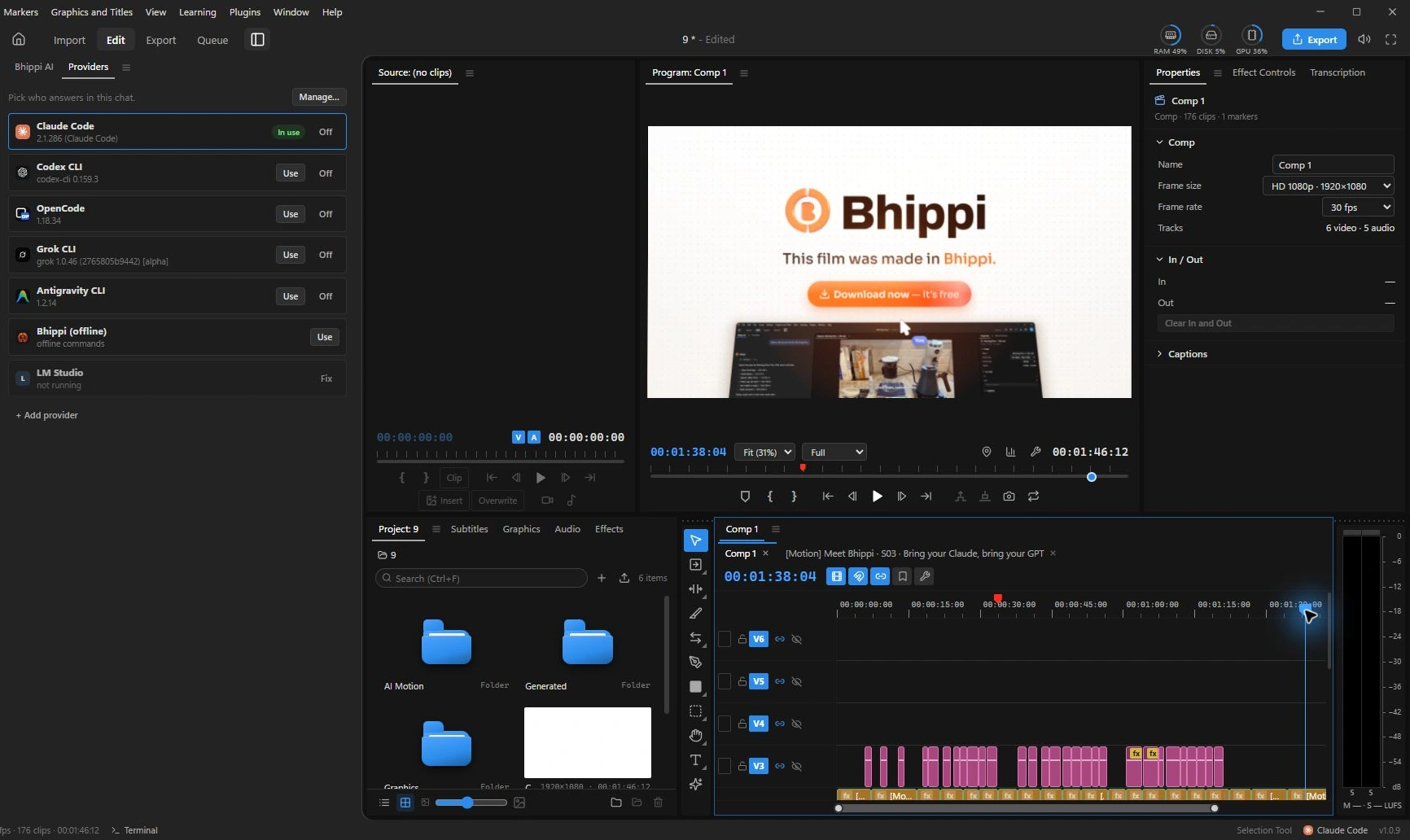
Bhippi supports local speech tools and editable captions. In Settings, download the speech model you intend to use before relying on local transcription. Models are separate downloads, and processing speed depends on the model and your computer. The first setup is different from the everyday transcription job.
Generate a draft, correct the words, check the timings and then choose the style. Keep those passes in that order. If you start with a dramatic caption preset, it becomes tempting to judge the animation and miss the sentence underneath it.
- Check every proper name against the speaker’s supplied spelling.
- Listen to numbers, dates, negations and technical terms.
- Review language switches without forcing the whole sentence into one language.
- Test the longest caption at phone size and in the actual export.
- Review captions again after changing the cut.
Automatic captions are valuable because they remove much of the typing. The human review is valuable because it protects meaning. Let each do its job. You will get a cleaner result than either an unchecked automatic pass or an exhausted evening of manual transcription.
You can try this workflow with a free Bhippi tester key during early access. Claim the key and download now to keep Bhippi free for life. If you choose a cloud transcription or AI service, check its own pricing and data handling separately.
Give the caption reviewer the vocabulary
Make a small glossary before the review. Include speaker names, places, brands, technical terms and the preferred spellings of words you expect to hear. For mixed-language speech, add a note about the intended script. A reviewer who knows those choices can correct the transcript consistently instead of guessing a different spelling each time.
Keep the glossary beside the project, not inside a prompt you will struggle to find later. When a name changes, search every occurrence in the caption text and watch the corresponding moments again. The same spoken word can be recognised differently across several takes.
Ask someone who understands the recording to read the captions at playback speed. A grammatically tidy sentence is not useful if it disappears too quickly, overlaps important picture information or quietly changes the speaker's meaning. Style the reviewed version, and do one final pass on the exported file. Captions are part of the delivered video, so review that version rather than relying entirely on the editing preview.
FOLLOW THE EVIDENCE
Sources & notes
Checked October 1, 2026. Community posts describe individual experiences, not a representative survey. Vendor policies and pricing can change. Workflow examples are illustrative; these articles do not present a hands-on comparative benchmark. Bhippi publishes this blog and makes the editor discussed here.
- YouTube: use automatic captioning Official help
Advises reviewing captions and describes problems with unclear speech, accents and overlapping speakers.
- Whisper: model documentation and language information Official project documentation
Multilingual speech recognition; performance varies by language and model.
- W3C: captions for prerecorded video Accessibility guidance
Explains captions, meaningful sound information and accessible media practices.
- Creators ask for a free Hinglish subtitle workflow Community discussion
An individual request for Hindi–English subtitle generation and SRT export, not an accuracy benchmark.
- Creators discuss fixing automatic captions for accents Community discussion
An individual discussion of caption corrections, including product names and non-native speech.